

The world of AI video generation is evolving rapidly. Just a year ago, AI videos were jittery, low-resolution, and full of artifacts. Today, we are thrilled to integrate Veo 3.1 into Fexi AI. This state-of-the-art model sets a new standard for video realism and motion consistency, bridging the gap between imagination and reality.
Understanding Generative Video Physics
One of the biggest challenges in AI video has been "physics." Does water splash correctly? Does fabric fold naturally? Veo 3.1 excels in understanding these complex scenes. It simulates the physical properties of objects within the video.
Unlike older models that might struggle with flowing water, hair movement, or complex interactions between objects, Veo 3.1 handles these details with incredible precision. It understands the 3D geometry of the world within your image, allowing for cinematic camera movements like pans and zooms without distorting the subject.
Try Veo 3.1 in Fexi AI
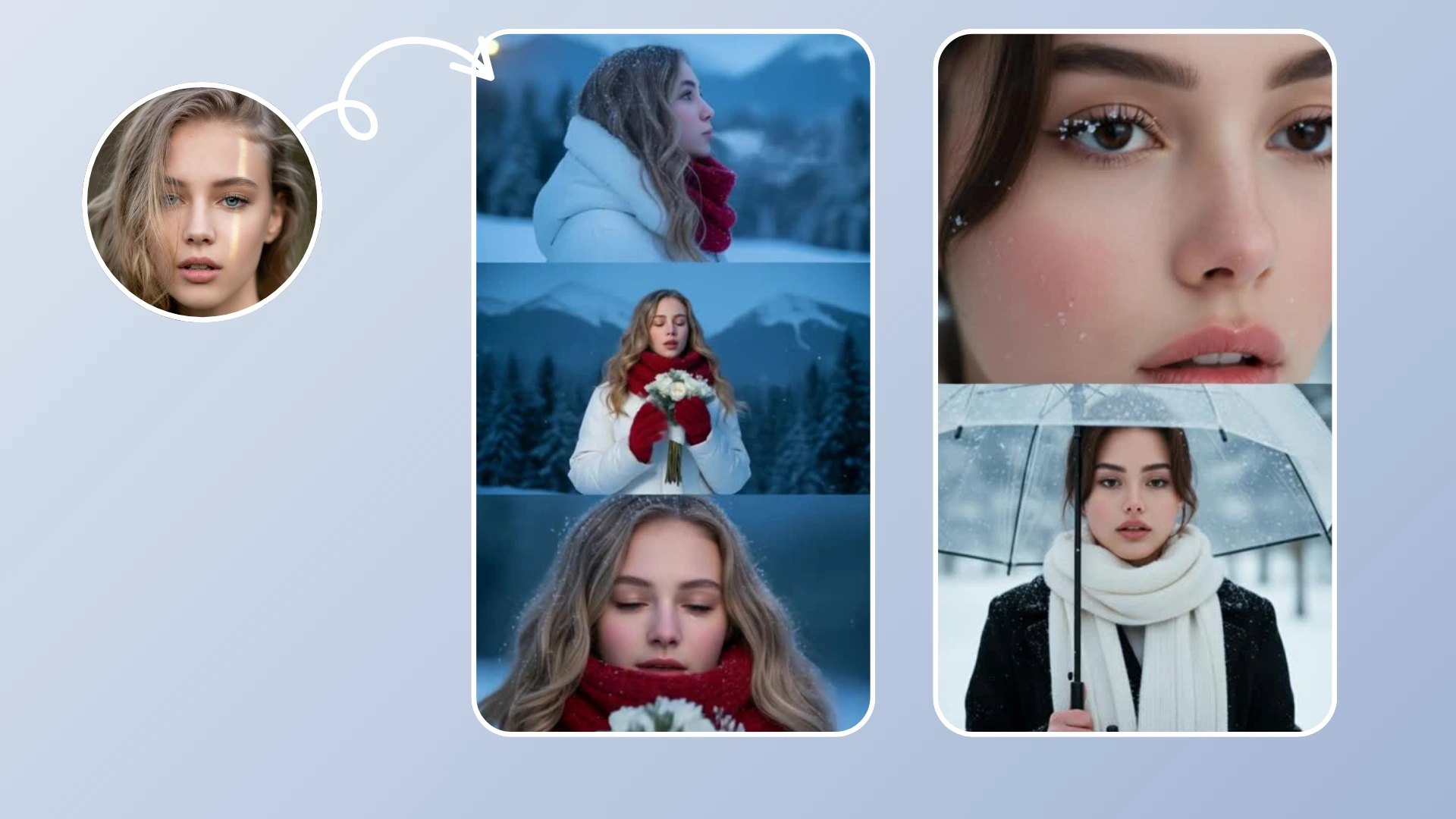
Experience the cutting-edge of AI video generation. Generate hyper-realistic videos from your photos.
Try Fexi NowKey Features of Veo 3.1
- Temporal Consistency: This fancy term means that things stay the same over time. If a person turns their head, their face doesn't morph into someone else's. Veo 3.1 offers rock-solid consistency.
- Dynamic Lighting: The model understands light sources, creating realistic shadows and reflections that shift naturally as objects move.
- High Resolution: Generate crisp 1080p videos that are ready for large screens, not just phone displays.
Prompting Guide for Veo
To get the best out of Veo 3.1, your text prompts matter. Be descriptive about motion and atmosphere.
Bad Prompt: "A dog running."
Good Prompt: "A golden retriever running through a field of tall grass during golden hour, cinematic slow motion, fur blowing in the wind, 4k detail."
How to Use Veo 3.1 in Fexi AI
Unleash the power of Veo 3.1 on your own photos.
Step 1: Update Fexi AI
Ensure you have the latest version of Fexi AI installed to access the new models. We push updates frequently to include the latest tech.
Step 2: Select the Veo Model
When choosing a generation style, look for the "Pro Models" section and select Veo 3.1.
Step 3: Upload & Prompt
Upload your image. Veo 3.1 works best with high-quality inputs. Add a detailed text prompt to guide the animation.
Step 4: Experience High-End AI
Generate your video. The process might take a few seconds longer due to the model's complexity, but the results are worth the wait.
Step 5: Export 4K
Save your masterpiece in high resolution and share it with the world. Tag us so we can feature your art!